Rewrite ROI
This tool is designed to rewrite ROI files from the format generated by ImageJ into a format readable by the scripts in the Phot2Conc folder.
Prepare of the ROI files
Start ImageJ or Fiji
Open one of the .png file obtained within the EXTRACT from PTU and FILTER mode, either garyscale or false-colours; see the OUTPUT section from the EXTRACT from PTU and FILTER.
Make a selection around the region of interest,
In the Edit menu, select Clear Outside,
In the Edit menu, select Fill,
Save the image as Text Image.
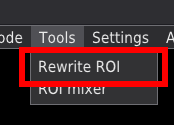
It will open a new window that will help to navigate through the process,
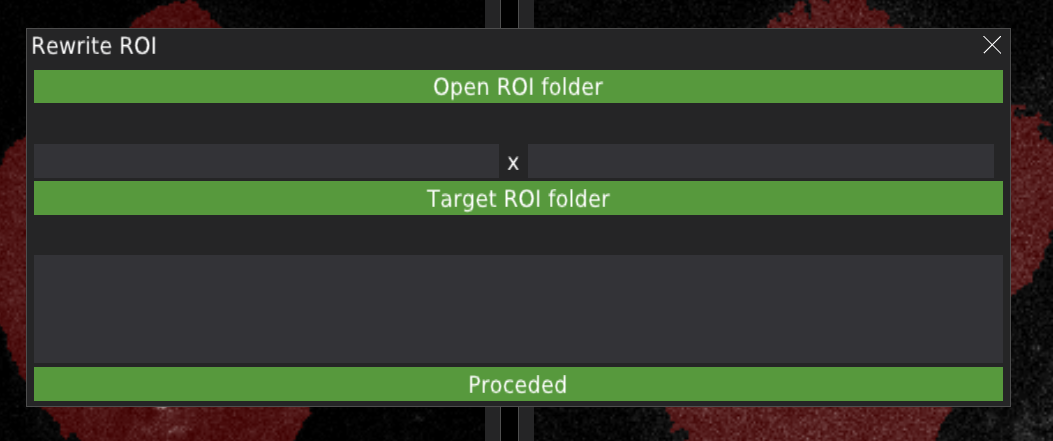
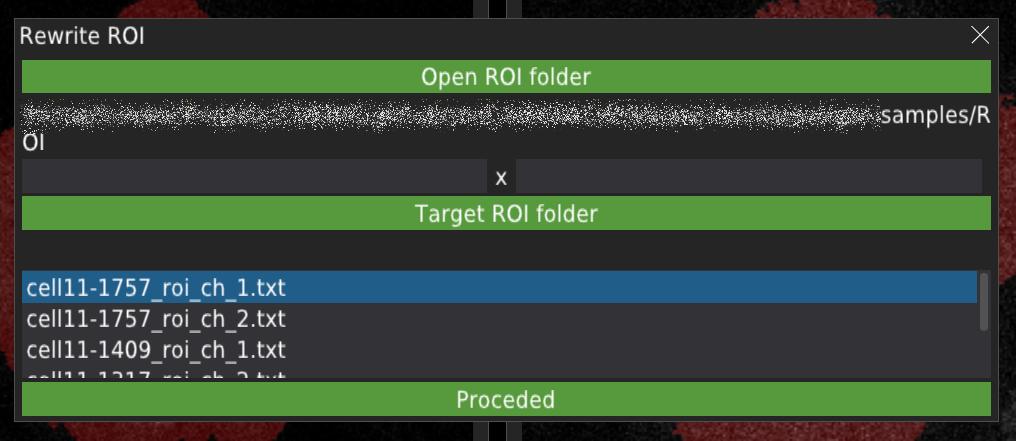
Press the Open ROI folder button to open a dialogue window where you can select the folder containing ROI files obtained from ImageJ. The ROI files must be saved as .txt files,
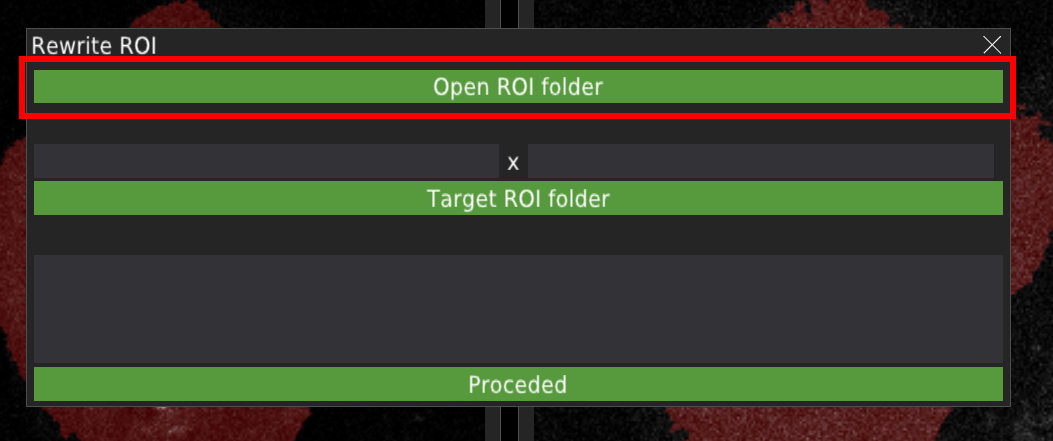
Below the button, the path to the folder will appear. For safety purposes, part of the path in the image below was smudged,
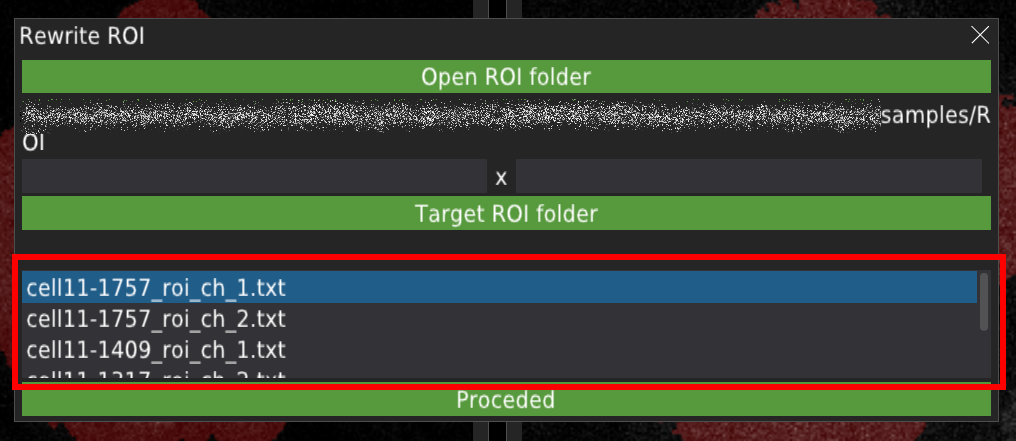
Also, the list of files will be created:
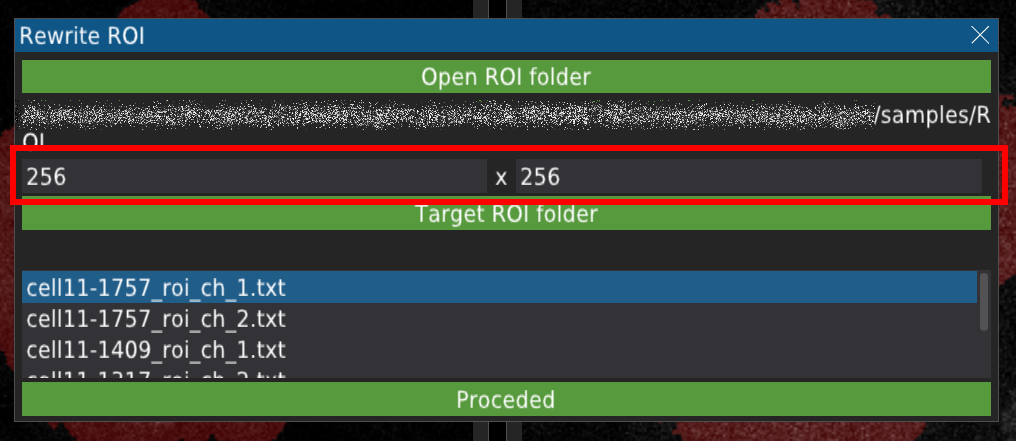
Next, input the resolution of the image (for example, 256 x 256)
Press the Target ROI folder button to open a dialogue window where you can select the folder where rewritten ROI files will be created,
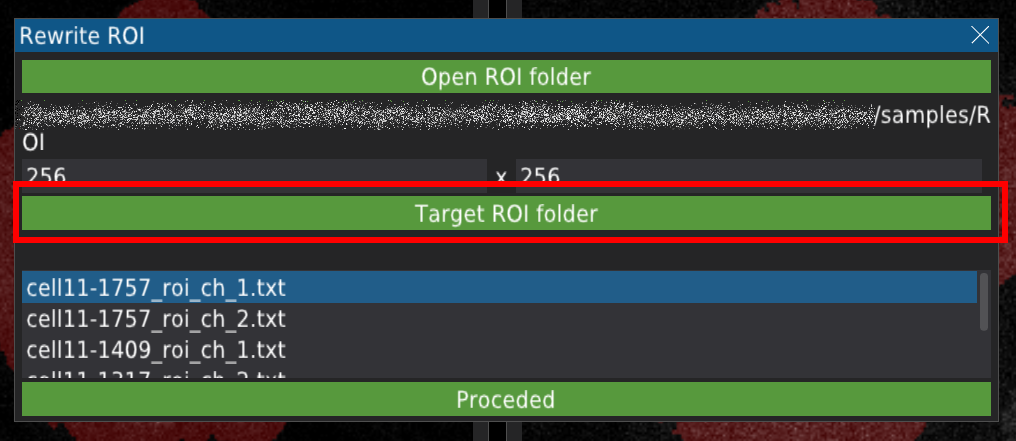
Below the button, the path to the folder will appear,
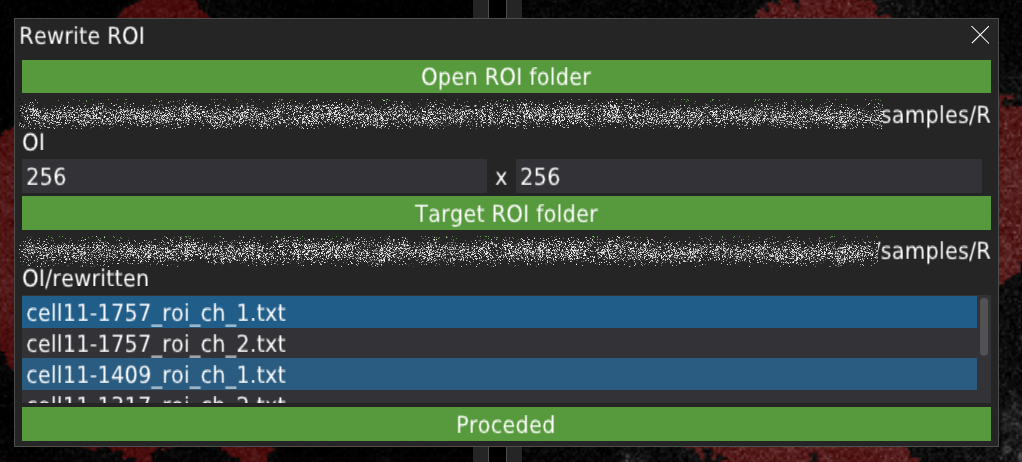
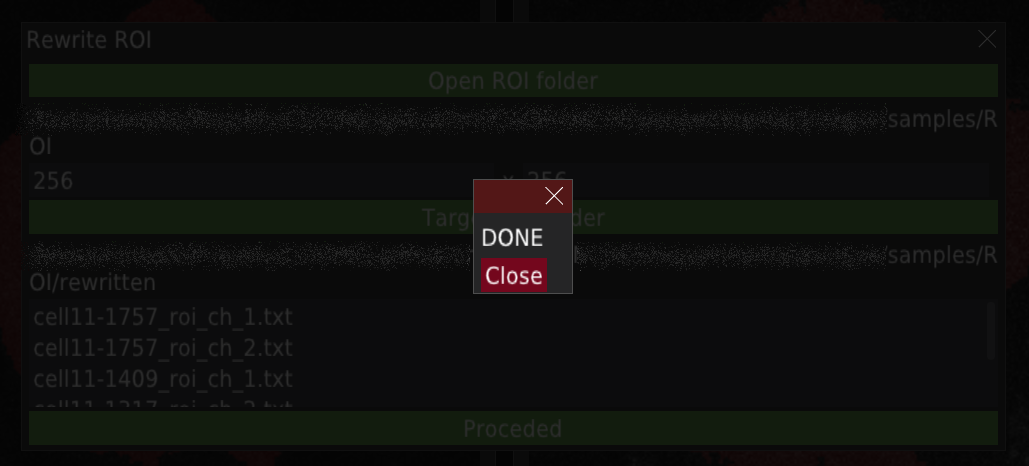
Press the “Proceed” button to start the rewriting.
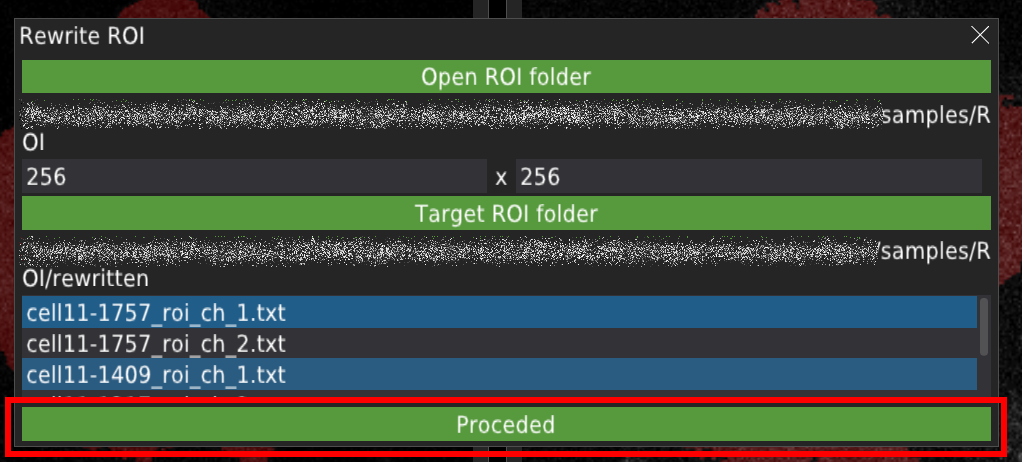
The end of the process will be signalled with a pop-up window.